
Download iMedia Browser – All‑in‑One Media Preview Tool for macOS
Overview
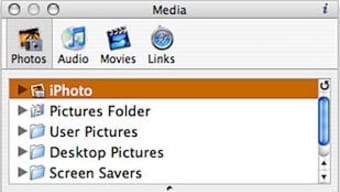
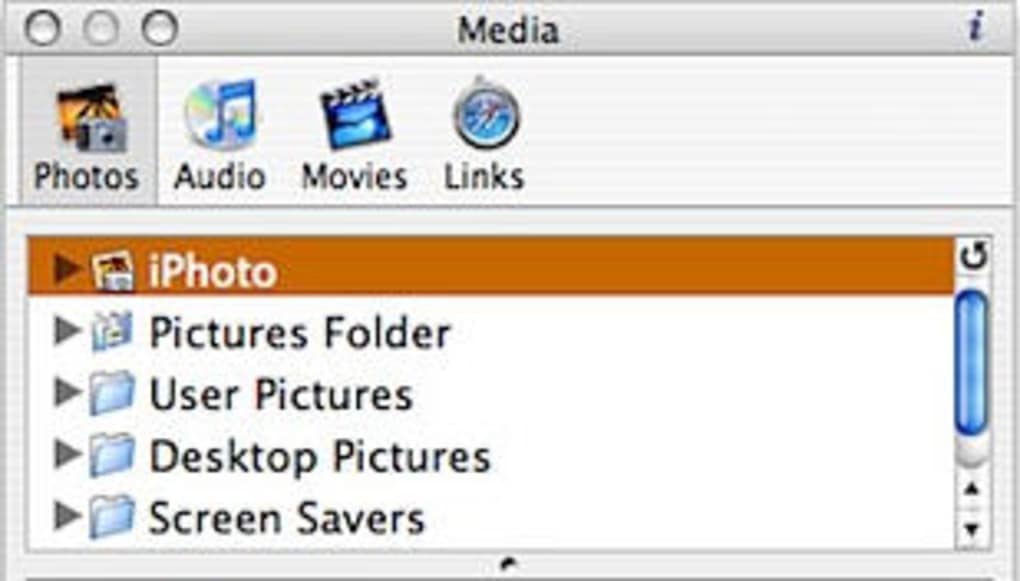
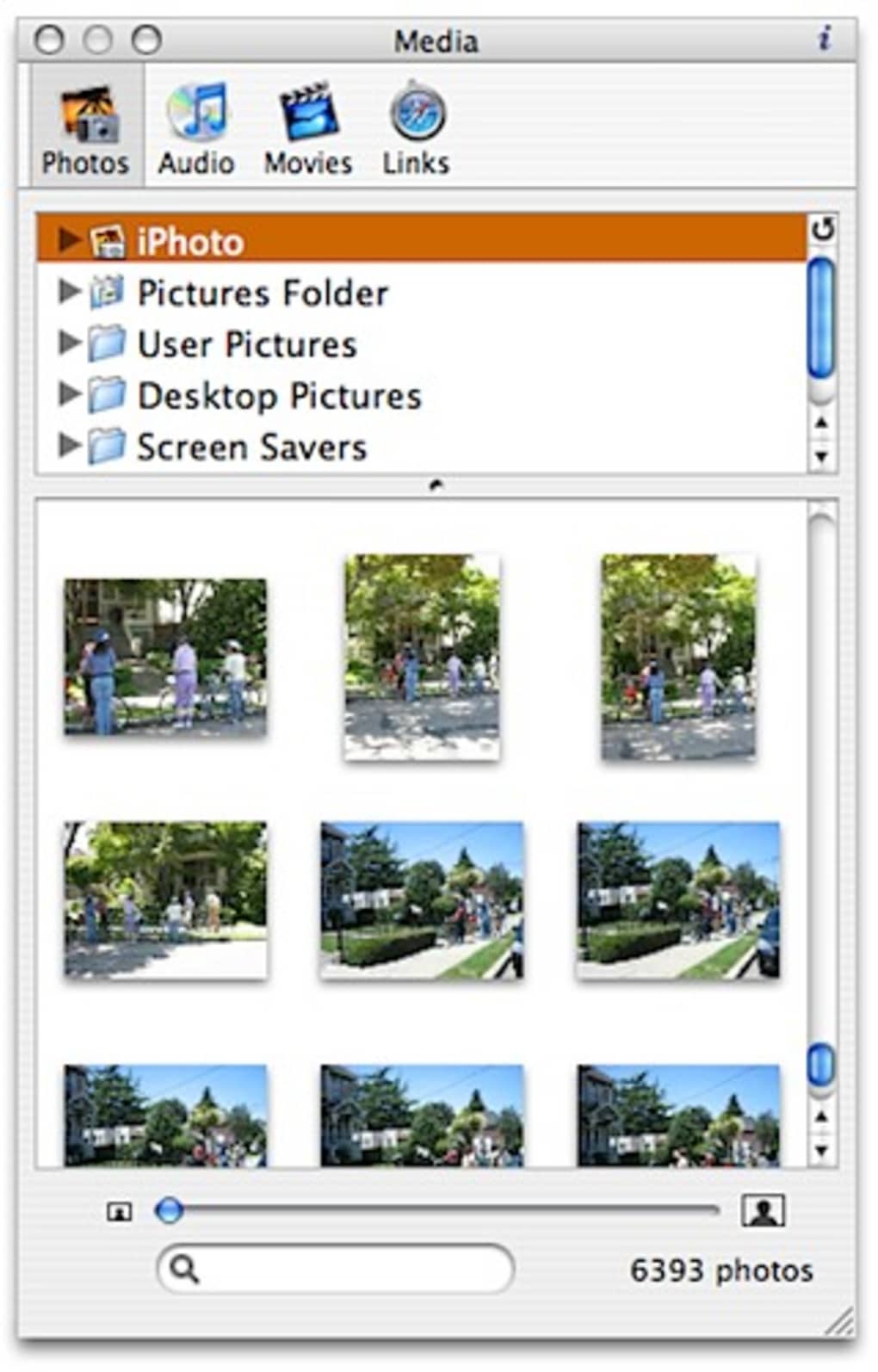
iMedia Browser is a lightweight macOS utility that brings photos, videos, music, and even web bookmarks together under a single, clean interface. Designed for users who want to quickly glance at the contents of any folder without launching separate apps, iMedia Browser displays thumbnails, offers a smooth zoom slider, and supports drag‑and‑drop previews. The top navigation bar reveals your folder hierarchy, while the central pane renders a live preview of every file in the selected folder.
Whether you’re a photographer sorting through hundreds of images, a filmmaker looking for the right clip, or a music enthusiast browsing a massive library, iMedia Browser promises a faster, more visual way to locate files. Although the tool consolidates many media types, it occasionally feels crowded, especially when dealing with large music collections that are traditionally managed by iTunes or Apple Music. Nevertheless, the ability to see a thumbnail of a video, listen to a short audio snippet, or view a photo without opening the native app can save valuable time.
Recent updates also add compatibility with Aperture 3, ensuring that professional photographers can preview RAW assets directly within iMedia. In short, iMedia Browser is a free, secure, and regularly updated app that streamlines media browsing on macOS.
Key Features & Usability
- Unified media view – photos, videos, audio, and bookmarks displayed together.
- Dynamic folder tree with dropdown arrows for quick sub‑folder navigation.
- Live preview pane that updates instantly as you select files.
- Zoom slider for seamless scaling of thumbnails and video frames.
- Drag‑and‑drop support – drop any file onto the window to see an instant preview.
- Support for popular formats: JPEG, PNG, HEIC, MP4, MOV, MP3, AAC, and more.
- Integration with Aperture 3 for RAW photo previews.
- Lightweight footprint – less than 30 MB of disk space.
- Automatic updates through the Mac App Store.
- Secure sandboxed environment to protect your data.
How iMedia Improves Your Workflow
When you open a folder in Finder, you often have to switch to Quick Look (space bar) or launch the native app to confirm a file’s content. iMedia Browser eliminates this back‑and‑forth by keeping a live thumbnail grid always visible. The zoom slider is particularly handy for high‑resolution photos; you can quickly enlarge a picture to inspect details without opening Photoshop. For video editors, the preview pane shows the first frame and, with a single click, plays a short snippet, helping you decide whether the clip belongs in your project.
Musicians benefit from the audio waveforms displayed beneath each track, offering a visual cue before opening iTunes. Even web designers can preview HTML bookmarks as thumbnails, making it easier to locate the right link among dozens of saved pages. By centralising these actions, iMedia reduces the cognitive load of juggling multiple applications and speeds up the “find‑the‑right‑file” phase of any creative process.
Installation, Setup & Compatibility
Step‑by‑Step Installation
Downloading iMedia Browser is straightforward. Visit the official website or the Mac App Store, click “Get” or “Download,” and the installer will appear in your Downloads folder. Double‑click the .dmg file, drag the iMedia icon into the Applications folder, and launch the app. The first run may prompt you to grant access to your Pictures, Music, and Movies folders; this permission is required for the app to generate previews. Accept the request, and iMedia will automatically index the selected directories.
System Requirements & Operating System Support
iMedia Browser is built for macOS 10.14 (Mojave) and later, including Ventura and Sonoma. It runs natively on both Intel and Apple Silicon Macs, thanks to universal binaries. The app leverages macOS’s built‑in media codecs, ensuring smooth playback of most common formats without additional plugins. While iMedia is a macOS‑only solution, its design principles can inspire similar tools on Windows, Android, or iOS for users seeking a unified media preview experience.
Initial Configuration Tips
After installation, take a moment to customise the folder view. In the Preferences pane, you can enable or disable specific media types, adjust thumbnail size, and choose whether the zoom slider appears at the top or bottom of the window. For power users, the “Advanced Indexing” option allows you to include network drives and external SSDs, expanding the app’s reach beyond the internal drive. Remember to set the app to launch at login if you frequently need quick media access; this option resides under “General” in Preferences.
Updates & Security
iMedia Browser receives regular updates through the Mac App Store. Each update includes bug fixes, performance tweaks, and occasionally new format support (e.g., HEIF or AV1). Because the app runs in a sandboxed environment, it adheres to Apple’s security standards, minimizing the risk of malware or data leaks. Users can also manually check for updates by selecting “Check for Updates” from the iMedia menu bar.
Pros, Cons, FAQ & Conclusion
Pros & Cons
- Pros
- All‑in‑one media preview eliminates the need for multiple apps.
- Fast, responsive UI with a smooth zoom slider.
- Drag‑and‑drop preview works for any file type.
- Lightweight and low on system resources.
- Supports Aperture 3 and a wide range of media codecs.
- Cons
- Media library can feel cluttered when large music collections are displayed.
- Not as feature‑rich for audio management compared to iTunes/Apple Music.
- No built‑in editing tools – only preview functionality.
- Limited to macOS; no native Windows or mobile version.
Frequently Asked Questions
Can iMedia Browser preview RAW photo files?
Yes. With the recent update, iMedia now supports RAW formats from Aperture 3 and most DSLR cameras, allowing you to view thumbnails without opening a dedicated editor.
Is iMedia Browser free or paid?
iMedia Browser is free to download and use. Optional premium features, such as advanced indexing of network drives, may be offered in future paid extensions.
How does iMedia handle large music libraries?
While iMedia can display music files, it does not provide playlist management or deep metadata editing. For extensive music collections, users may prefer iTunes/Apple Music for organization and playback.
Can I customize the thumbnail size?
Yes. In Preferences > Appearance you can choose Small, Medium, or Large thumbnail sizes, and the zoom slider offers fine‑grained control for each view.
Is iMedia Browser compatible with Apple Silicon Macs?
Absolutely. The app ships as a universal binary, running natively on both Intel and Apple Silicon (M1, M2, etc.) machines.
Conclusion & Call to Action
iMedia Browser fills a niche that many macOS power users overlook: a fast, visual gateway to every media file on the system. Its strength lies in simplicity—no complex libraries, no hidden menus—just a clean grid where you can glance, zoom, and decide in seconds. While it may not replace dedicated audio or video editors, it dramatically reduces the time spent hunting for the right file. If you frequently juggle photos, clips, and music, downloading iMedia Browser today can streamline your workflow and keep your creative process moving. Download iMedia Browser now from the Mac App Store, explore its intuitive interface, and experience a more efficient way to browse your media.







